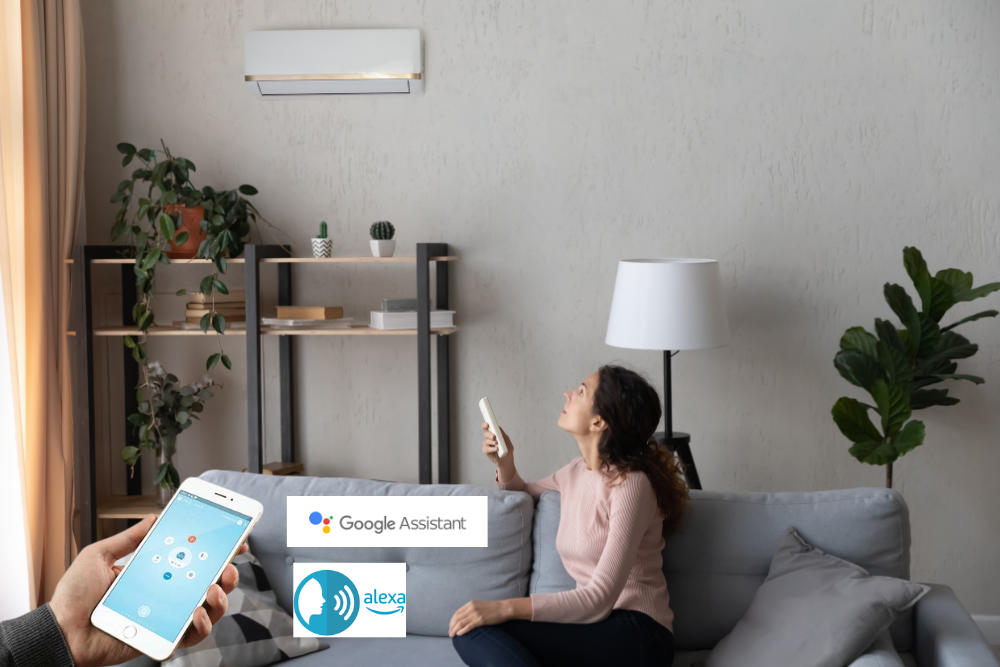
1️⃣ Why Put Your Split‑System in the Smart‑Home Ecosystem?
| ✅ Benefit | What It Means for You in KL/ Selangor |
|---|---|
| Voice Control | Turn the AC on/off, change temperature or mode without getting up – perfect for hot evenings in Bangsar or when you’re busy cooking in a Selangor kitchen. |
| Automation & Scheduling | Set a “Cool‑Down at 6 pm” routine that syncs with the city’s load‑shedding schedule, reducing both temperature spikes and electricity bills. |
| Geofencing | AC automatically switches to Eco mode when you leave the house and returns to your preferred temperature the moment you step back in. |
| Energy‑Usage Insights | Pair a smart plug or a dedicated AC energy monitor and get real‑time kWh data in the Google Home or Apple Home app – helpful for the 2026 energy‑rebate program. |
| Future‑Proofing | As 5G coverage expands across Kuala Lumpur, your AC can be accessed remotely with zero‑lag, preparing you for the next generation of home‑automation services. |
Bottom line: A smart‑connected split‑system isn’t a novelty; it’s a practical way to stay cool, cut costs, and keep your home feeling futuristic.
2️⃣ What You Need Before You Start
| Item | Why It’s Required | Recommended Models (2026) |
|---|---|---|
| Wi‑Fi‑Enabled IR Blaster (or built‑in Wi‑Fi module) | Translates internet commands into infrared signals your AC understands. | Broadlink RM4 Pro, Sensibo Sky, SmartThings Smart AC Controller |
| Home‑Assistant Hub (optional) | Consolidates Google, Alexa, and HomeKit under one UI, useful for complex automations. | Raspberry Pi 4 with Home Assistant OS |
| Stable Wi‑Fi (2.4 GHz) | Most IR blasters only support 2.4 GHz. Ensure signal reaches the wall‑mounted unit. | Ubiquiti UniFi 6 Lite (excellent coverage for high‑rise KL condos) |
| Smart Thermostat (optional but recommended) | Provides precise temperature feedback to the voice assistants. | Ecobee SmartThermostat(works with all three ecosystems) |
Tip: If you’re unsure which hardware fits your split‑system brand (Daikin, Mitsubishi, Panasonic, Carrier…) – contact MY AC COOL. We’ve pre‑tested every module on the most common brands sold in the KL market.
3️⃣ Google Home – Step‑by‑Step Guide
3.1 Add the IR Blaster to Google Home
- Plug in the Broadlink RM4 Pro (or your chosen device) near the AC.
- Download the Broadlink app (Android / iOS).
- Follow the in‑app wizard to connect the blaster to your Wi‑Fi (2.4 GHz).
- In the Broadlink app, “Add Device” → “Air Conditioner” and learn the IR codes (Power, Temp +, Temp -, Mode).
- Open Google Home → + Add → Set up device → Works with Google → Search for “Broadlink” (or “Sensibo”) and link the account.
If you used a Sensibo Sky, the linking step is Sensibo → Google instead of Broadlink.
3.2 Create Voice Commands
- In Google Home, the device will appear as “Air Conditioner” (or the name you gave it).
- Rename it to something room‑specific, e.g., “Living‑Room AC”.
- Test a simple command:
- “Hey Google, turn on the living‑room AC.”
- “Hey Google, set the living‑room AC to 23 °C.”
3.3 Build Routines (Automation)
| Routine | Trigger | Action |
|---|---|---|
| Evening Cool‑Down | At 18:00 daily | Turn AC on, set 22 °C, Mode: Cool |
| Load‑Shedding Saver | When Power Outage detected (via smart plug) | Switch AC to Eco mode, lower temperature by 2 °C |
| Away Mode | Geofence – you leave home (Google Maps) | Turn AC off, power‑down any auxiliary fans |
4️⃣ Amazon Alexa – Step‑by‑Step Guide
4.1 Connect Your IR Blaster to Alexa
- Open the Alexa app → Devices → + Add Device → Add Smart Home Device.
- Search for “Broadlink” (or “Sensibo”) and sign in with the same account you used in its native app.
- Alexa will discover the Air Conditioner as a controllable device.
4.2 Naming & Grouping
- Rename the device to “Bedroom AC” or “Office AC”.
- Add it to a Smart Home Group (e.g., “Living Area”) so you can control multiple devices with one command:
- “Alexa, turn off the living area.”
4.3 Voice Commands & Routines
| Command | What Alexa Does |
|---|---|
| “Alexa, turn on the bedroom AC.” | Sends an IR “Power‑On” pulse. |
| “Alexa, set the bedroom AC to 24 °C.” | Sends the appropriate temperature code. |
| “Alexa, increase the temperature by 2 degrees.” | Adjusts the target temperature accordingly. |
| “Alexa, activate the Cool‑Down routine.” | Triggers a pre‑saved routine (see next step). |
- More → Routines → +
- When this happens: Choose Schedule, Location, Smart Home Device, or Voice.
- Add Action → Smart Home → Control Device → select your AC and set the desired state (Power On, Temp 22 °C, Mode Cool).
5️⃣ Apple HomeKit – Step‑by‑Step Guide
HomeKit does not natively support most IR blasters, but you can bridge them with Homebridge (a free, open‑source Node.js server).5.1 Set Up Homebridge (One‑Time)
- Hardware – a Raspberry Pi 4 (or any always‑on PC).
- Install Homebridge:
curl -L https://git.io/homebridge-installer | bash - Add the homebridge-broadlink-rm plugin (or homebridge-sensibo if you use Sensibo):
sudo npm install -g homebridge-broadlink-rm - Edit the config.json (found in
~/.homebridge) to add your IR blaster’s IP address and learned AC codes. Example snippet:{ "accessory": "BroadlinkRM", "name": "Living‑Room AC", "host": "192.168.1.45", "acCodes": { "powerOn": "0x1f2e3d4c", "temp24": "0x2a1b0c9d", "modeCool": "0x3b2c1d0e" } } - Start Homebridge (
homebridge) and note the QR code displayed in the terminal.
5.2 Add to Apple Home
- Open the Home app on your iPhone/iPad.
- Tap + → Add Accessory → Scan QR code (or enter the 8‑digit setup code).
- The AC appears as a “Living‑Room AC” accessory. Assign it to a room and optionally to a scene.
5.3 Voice Commands with Siri
- “Hey Siri, turn on the living‑room AC.”
- “Hey Siri, set the living‑room AC to 25 °C.”
- “Hey Siri, activate the Evening Cool‑Down scene.”
5.4 HomeKit Automations
| Automation | Trigger | Action |
|---|---|---|
| Night‑time Sleep | At 23:00 | Set AC to 21 °C, switch to Quiet mode. |
| Morning Warm‑Up | Sunrise (via Home app) | Turn AC off (so you wake up to fresh air). |
| Power‑Outage Backup | When smart plug detects loss of power | Turn on a backup fan and send a push notification. |
Pro tip: If you already have a Ecobee or Nest thermostat, they appear automatically in HomeKit, letting you combine temperature sensing with AC control for tighter climate regulation.
6️⃣ Automation Ideas that Save Energy & Money
| Automation | What It Does | Approx. Savings (based on MY AC COOL field data) |
|---|---|---|
| Geofencing “Away” | Detects when the last family member leaves home → AC → Eco mode (ΔT + 2 °C). | 12‑15 % lower electricity on a 3‑month basis. |
| Load‑Shedding Sync | When a smart plug detects a cut, AC switches to Low‑Power (fan only). | Avoids a 5‑10 % spike when power returns. |
| “Leave‑Window Open” Alert | Uses a door‑sensor; if a window is open while AC is on → push notification + auto‑off. | Prevents wasteful cooling of outside air (up to 20 %savings per incident). |
| Seasonal “Cool‑Down” | Pre‑cool the house 30 min before you arrive (detected via location). | Improves comfort without extending runtime. |
| Energy‑Monitor Trigger | When real‑time kWh exceeds a set threshold, automatically lower the set‑point by 1 °C. | Keeps daily consumption under the RM 150 limit for most 2‑ton units. |
7️⃣ Common Hurdles & Quick Fixes
| Issue | Likely Cause | Quick Fix |
|---|---|---|
| No response from AC | IR blaster not pointed correctly or blocked. | Re‑position the blaster within 30 cm of the unit, ensure line‑of‑sight. |
| Delay of > 3 seconds | Wi‑Fi congestion or 5 GHz network being used. | Switch the blaster to the 2.4 GHz band, use a dedicated SSID for smart‑home devices. |
| Temperature doesn’t change | Wrong IR code learned (e.g., ΔTemp + vs ΔTemp -). | Re‑learn the specific “Temp + 1” and “Temp ‑ 1” codes in the native app. |
| Voice command not recognized | Device name ambiguous (e.g., multiple “AC” devices). | Rename each unit with a unique room‑based name(Living‑Room AC, Bedroom AC). |
| HomeKit shows “Accessory Not Responding” | Homebridge service stopped. | Restart Homebridge (sudo systemctl restart homebridge) or check the log for syntax errors in config.json. |
| Power‑Outage cuts Wi‑Fi | Router not on UPS. | Connect your router to a UPS or use a 5G mobile hotspot as a backup. |
| Air‑conditioner won’t connect after a firmware update | Some OEMs lock the IR code table. | Use the manufacturer’s Wi‑Fi module (e.g., Daikin Online Control) – MY AC COOL can install this for you. |
When in doubt – give us a call. Our technicians can remotely diagnose the issue or arrange a no‑charge on‑site visit (2‑3 pm) to get everything humming again.
8️⃣ Safety, Privacy & Data‑Security Tips
- Use Strong Wi‑Fi Passwords – at least 12 characters, mixed case, numbers, symbols.
- Enable Two‑Factor Authentication (2FA) for your Google, Amazon, and Apple accounts.
- Keep Firmware Updated – both the IR blaster and your router receive security patches.
- Limit Cloud Permissions – only enable the “Control AC” permission; disable location tracking unless you need geofencing.
- Local‑Only Mode (Advanced) – with Homebridge, you can run a local HomeKit server that never sends data to Apple’s cloud.
9️⃣ Ready to Go Fully Smart? Let MY AC COOL Do the Heavy Lifting
| Service | What We Provide | Why Choose Us (KL & Selangor) |
|---|---|---|
| Smart‑Module Installation | We fit a 5G‑ready, low‑latency Wi‑Fi module directly into the indoor unit – no IR blaster needed. | Seamless native integration with Google Home, Alexa & HomeKit. |
| Voice‑Assistant Configuration | Full setup of Google, Alexa & HomeKit, plus custom routines tailored to your lifestyle. | One‑stop‑shop – no need to juggle three apps. |
| Energy‑Audit & Automation Design | On‑site measurement of current kWh, then design of automations that cut your bill by up to 15 %. | Proven savings for over 300 KL homes in 2025. |
| Premium Chemical Clean (No Dismantle) | Gas refill (20 psi) + full unit wash + blower & filter cleaning – all at RM 125 per unit or less. | Cleaner AC = more accurate temperature reporting for smart commands. |
| Free 30‑minute Site Visit (2‑3 pm) | We come, assess your AC, and give you a no‑charge quote – we want you to become a loyal customer. | Transparent pricing, no hidden fees. |